

Download GIMP: A Free Photoshop Alternative for Photo Editing
Not everyone has the need (or the budget) to pay a monthly fee for Photoshop, especially when your photo work stops at basic retouching, compositing, or simple banner design. That’s why GIMP, the completely free, open-source photo editor, keeps coming up whenever someone goes looking for a Photoshop alternative.
In this guide, I’ll cover what GIMP is, where it shines, and how to download and install it on your computer so you can start using it right away. You’ll also find a quick comparison with Photoshop, tips for getting started, and answers to common questions.
What Is GIMP?
GIMP (short for GNU Image Manipulation Program) is open-source photo editing software developed and maintained by a community of programmers around the world. It offers nearly everything a professional photo editor needs: selection tools, layers, masks, brushes, filters for adjusting color and lighting, and even scripting to automate repetitive tasks.
Because it’s open source, GIMP is completely free, with no time limit, no account sign-up, and no license to buy. You can download it and use it for both personal and commercial work without worrying about licensing problems.
On file formats, GIMP can open and save many popular image types, including JPG, PNG, TIFF, and even Photoshop’s .psd files (though it doesn’t always preserve complex layer effects perfectly when opening files from Photoshop).
Why Choose GIMP Over Photoshop?
Compared with Photoshop, GIMP has several points that make many people, especially students, freelancers, and beginners, think twice:
- Free for life: no license fees and no monthly Creative Cloud subscription like Photoshop.
- Cross-platform: it runs well on Windows, macOS, and Linux, including on computers that aren’t very powerful.
- Full set of in-depth editing tools: layers, masks, curves, color filters. Pretty much whatever Photoshop has, GIMP has a counterpart for it.
- Plugin and script support: the community has built plenty of free plugins to extend features to fit your needs.
- No internet required: unlike some design tools that demand an online login, GIMP works fully offline once installed.
Of course, GIMP’s interface is a bit different from Photoshop’s, so if you’re used to Photoshop, it may take a little time to get comfortable with where things are. But overall, for everyday photo editing like compositing, color correction, banners, and cover images, GIMP handles the job well without costing you a cent.
GIMP vs. Photoshop: A Quick Comparison
| Feature | GIMP | Photoshop |
|---|---|---|
| Price | Free and open source | Paid subscription |
| Account required | No | Yes |
| Works offline | Yes | Mostly, with some cloud features |
| Platforms | Windows, macOS, Linux | Windows, macOS |
| Layers, masks, filters | Yes | Yes |
| Scripting and plugins | Script-Fu, Python-Fu, community plugins | Actions, scripts, extensive plugin ecosystem |
| Adobe ecosystem integration | None | Strong |
| Best for | Everyday editing, students, freelancers | Professional workflows and Adobe-based teams |
Details change between versions, so check the official websites if a specific feature matters to you.
How to Download and Install GIMP, Step by Step
Downloading and installing GIMP is fairly simple and doesn’t take long. Here are the exact steps:
Before You Start: Quick Checklist
- Download the installer only from the official GIMP website to stay safe.
- Make sure you pick the version that matches your operating system.
- Close other programs so the installation runs smoothly.
Step 1: Go to the GIMP Homepage
Go to the official GIMP website, choose the version that fits your operating system (Windows, macOS, or Linux), and download the installer to your computer.
Step 2: Run the Installer
Once the download finishes, open the installer, choose a display language if you’re asked, then click Next to continue.
Step 3: Choose Where to Install
You can keep the default install path the system suggests, or pick a different drive if you’d like. Then click Install to begin installing.
Step 4: Wait for the Installation to Finish
The system will automatically copy the necessary files to your computer. How long it takes depends on your machine, but it usually doesn’t take long.
Step 5: Finish Up
When you see the Finish button, click it and you’re done. GIMP is now ready to open and use.
The Main Tools in GIMP
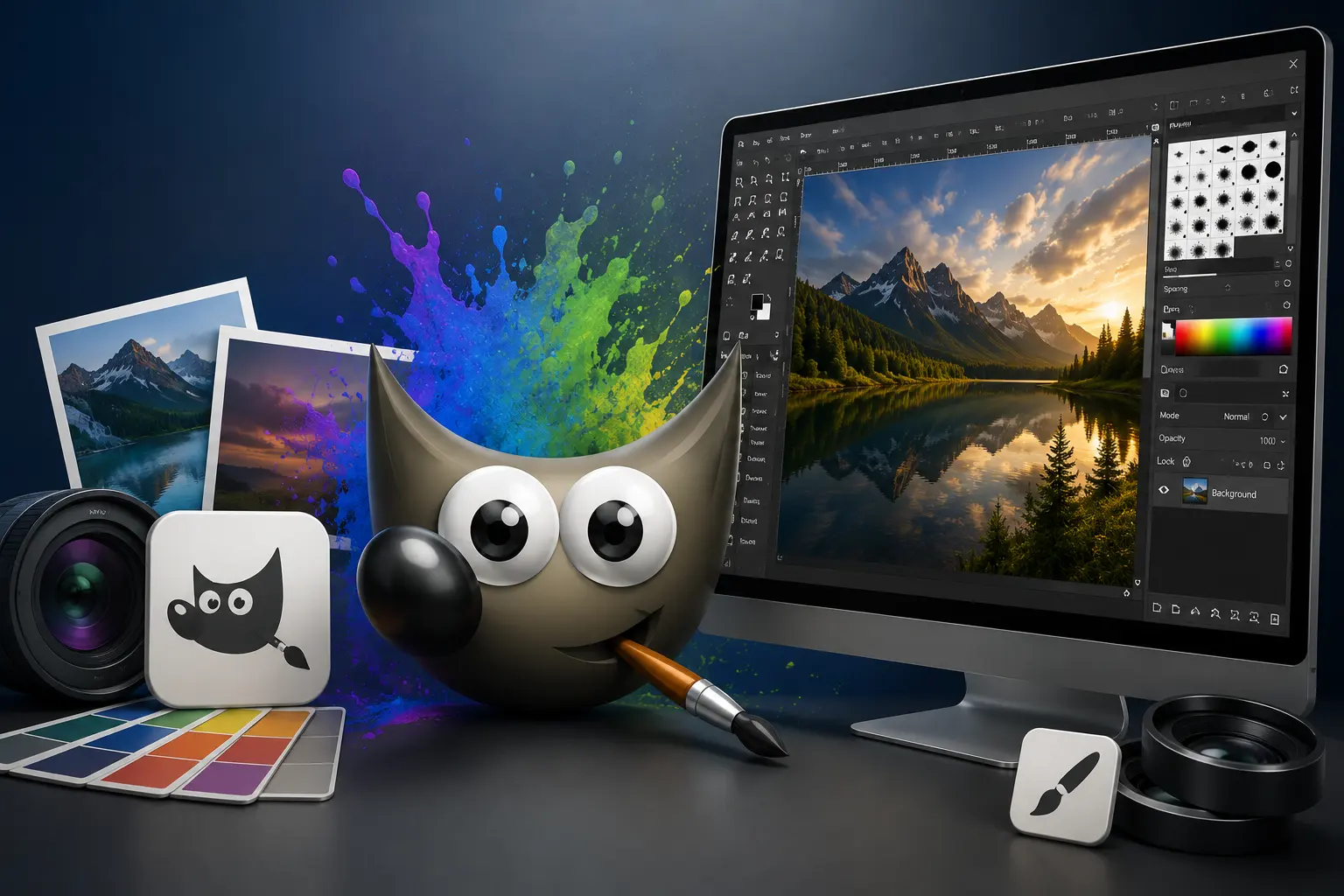
When you open GIMP, you’ll see the interface divided into several tool areas:
- Toolbox: holds the selection, crop, paint, eraser, and clone stamp tools, similar to Photoshop’s left-hand toolbar.
- Layers panel: manages your image layers, letting you stack multiple layers and edit each part independently without affecting the rest.
- Filters: a collection of effects for blurring, sharpening, color adjustment, and artistic looks.
- Script-Fu / Python-Fu: scripting tools for automating repetitive editing tasks, best suited to advanced users.
Thanks to this layout, you can do almost everything from basic to advanced photo editing inside a single workspace.
A Few Things to Try First
- Open a photo and crop it with the crop tool.
- Add a second layer and move it around independently.
- Adjust the colors with curves or a color filter.
- Try a blur or sharpen filter and compare the before and after.
- Export your result as JPG or PNG.
Tips for Getting Started
- Learn layers first. Almost everything in GIMP gets easier once layers make sense.
- Work on a copy. Keep your original photo safe while you experiment.
- Check .psd files carefully. Complex layer effects may not carry over perfectly, so review them after opening.
- Learn a few shortcuts. Shortcuts for zooming, selecting, and undoing save a lot of time.
- Explore plugins later. Get comfortable with the built-in tools before adding extensions.
Who Is GIMP For?
If you’re a student, a design beginner, or you only need basic photo editing like compositing, color correction, profile pictures, and social media banners, GIMP is a very sensible choice because it’s both free and powerful enough for these jobs. For freelancers and digital content creators who need a photo editor without license costs, it’s also a solution worth considering.
However, if your work involves in-depth use of specialized commercial plugins, or needs tight integration with the Adobe ecosystem (Lightroom, Illustrator, and so on), Photoshop is still the better fit. For most everyday photo editing needs, though, GIMP can handle the job well.
Frequently Asked Questions
Is GIMP really free?
Yes. GIMP is open source and completely free, with no time limit, no account, and no license to buy. You can use it for personal and commercial work.
Can GIMP open Photoshop (.psd) files?
Yes, but complex layer effects don’t always carry over perfectly, so check the file after opening it.
Does GIMP work offline?
Yes. Once it’s installed, GIMP works fully offline.
Is GIMP a good Photoshop replacement?
For everyday editing like retouching, compositing, and banners, yes. If you depend on commercial plugins or the Adobe ecosystem, Photoshop may still be the better fit.
Conclusion
GIMP is free, open-source photo editing software with a full set of tools from basic to advanced, suitable for beginners and experienced designers alike. With stable performance across operating systems, plugin support, and no need for an internet connection, it’s one of the most worthwhile Photoshop alternatives to try today.
If you need a free photo editor that’s still powerful enough for your work and creative projects, download GIMP today and give it a try.

