

Download Inkscape: A Completely Free Vector Graphics Alternative to CorelDRAW
CorelDRAW and Illustrator are still the familiar choices in the design world, but not everyone can afford their license fees, especially beginners learning vector art or people who only need to make a few simple logos and banners. Inkscape fills that gap neatly: it’s open-source vector design software you can download and use right away without paying a cent in licensing. This guide explains what Inkscape is, who should use it instead of CorelDRAW, and how to download and install it step by step. You’ll also find tips for getting started and answers to common questions.
What Is Inkscape?
Inkscape is a vector graphics design tool that lets you create logos, icons, illustrations, banners, and many other kinds of graphic work. Because it’s open source, Inkscape is completely free, with no trial period and no feature limits like some commercial programs have.
The interface is fairly intuitive. Toolbars and property panels are arranged close to the main working area, so even beginners learning vector design don’t need long to get comfortable. The software works with common vector file formats, which makes it easier to exchange files between Inkscape and other design programs.
Vector vs. Raster: A Quick Refresher
If you’re new to this, here’s the short version. Raster images (like photos) are made of pixels and get blurry when enlarged. Vector graphics are built from mathematical paths, so they stay sharp at any size. That’s why vectors are the standard for logos, icons, and anything that needs to be scaled from a business card to a billboard.
Who Should Use Inkscape Instead of CorelDRAW?
Not everyone needs a fully loaded professional toolkit like CorelDRAW. For basic to intermediate design needs, Inkscape does the job well:
- Design students who need a tool for practicing vector drawing without a budget for licensed software.
- Digital content creators who need simple logos, icons, and banners for personal projects.
- New freelancers taking on small design jobs who aren’t ready to invest in paid software yet.
- Everyday users who just want to edit an existing vector file or make a few simple designs.
If your work demands advanced print features or complex industry-standard color management, CorelDRAW or Illustrator still has its own edge. But for most everyday vector design needs, Inkscape is a sensible place to start.
Inkscape vs. CorelDRAW: A Quick Comparison
| Feature | Inkscape | CorelDRAW |
|---|---|---|
| Price | Free and open source | Paid license |
| Trial limits | None | Trial period applies |
| Best for | Logos, icons, banners, illustrations | Professional design and print workflows |
| Advanced print and color management | Basic to moderate | Stronger |
| Learning curve | Beginner-friendly | Steeper for new users |
Details change between versions, so check the official websites if a specific feature matters to you.
How to Download and Install Inkscape
Downloading Inkscape takes a few more steps than some programs because you need to pick the right version for your operating system, but the process is still clear.
Before You Start: Quick Checklist
- Download only from the official Inkscape website to stay safe.
- Check whether your Windows is 64-bit, since that’s the version used in this guide.
- Close other programs so the installation runs smoothly.
Download the Installer From the Official Website
Go to the Inkscape homepage and, if you’re on a Windows computer, click Windows. On the next screen, choose the 64-bit version, then click Installer in .exe format to start downloading the installer.
Install Inkscape on Your Computer
Once it’s downloaded, open inkscape.exe and click Next to continue. On the next step, tick Create Inkscape Desktop Icon if you’d like a shortcut on your desktop, then click Next.
Keep clicking Next through the two default setup steps, then click Install to begin the actual installation. The system copies the files over by itself, so you just wait while it runs.
When it’s finished, click Finish. On the next screen, click Save, then Thanks! to close the notification windows.
Opening Inkscape for the First Time
When you open Inkscape for the first time, it shows a screen for choosing a document type. You can untick Always show this screen if you don’t want to see it again on future launches, then click New Document to enter the main workspace.
The Inkscape Interface
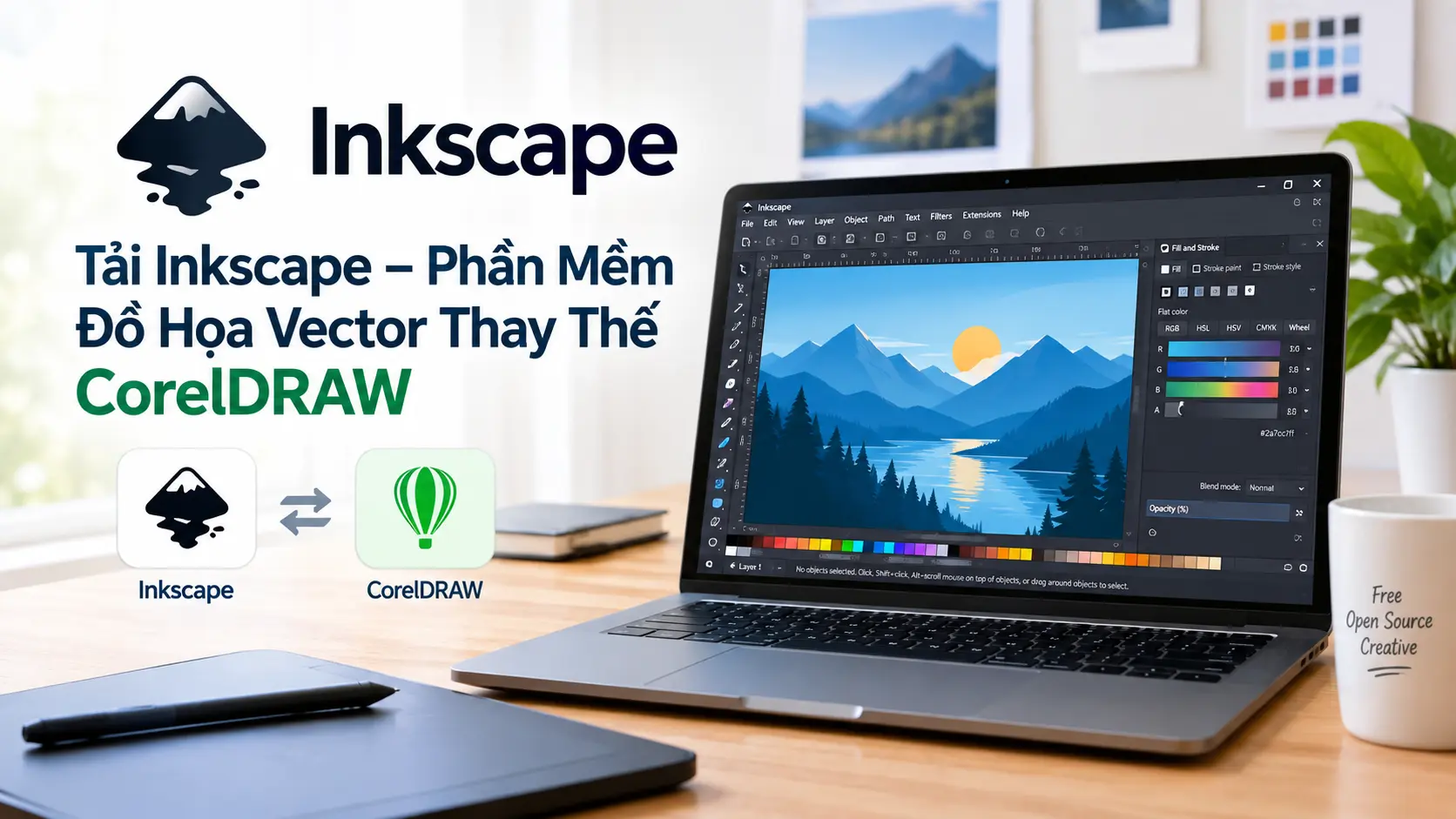
After you open a new document, you’ll see the canvas in the center, the drawing tools running down the left side, and the color palette and object properties on the right or along the bottom, depending on the default layout. This arrangement is quite similar to other vector design programs, so if you’ve used Illustrator or CorelDRAW before, getting comfortable with Inkscape won’t take long.
A Few Tools to Try First
You don’t need to learn everything at once. These basics cover a lot of ground:
- Selection tool: click, move, and resize objects.
- Shape tools: draw rectangles, circles, stars, and polygons.
- Pen tool: draw custom paths and curves point by point.
- Text tool: add and style text for logos and banners.
- Fill and stroke: set the color of an object’s inside and outline.
Tips for Getting Started
- Start with a simple project. A basic logo or icon is a great first exercise.
- Learn the shortcuts gradually. A few keyboard shortcuts for selecting, drawing, and zooming will speed you up.
- Use layers. Keeping elements on separate layers makes complex designs much easier to edit.
- Save in the native format while you work. Export to PNG or other formats only when you’re ready to share.
- Save often. It’s a good habit with any design software.
Frequently Asked Questions
Is Inkscape really free?
Yes. Inkscape is open source, so you can download and use it with no license fee, trial period, or feature limits.
Is Inkscape good for beginners?
Yes. The interface is intuitive, and the free price tag makes it a low-risk way to learn vector design.
Can Inkscape replace CorelDRAW or Illustrator?
For basic to intermediate design work, yes. For advanced print workflows and industry-standard color management, the paid tools may still be a better fit.
Which version should I download?
This guide uses the 64-bit Windows installer. If you use another operating system, choose the matching version on the official download page.
Should You Download Inkscape for Vector Design?
If you need free vector graphics software for logos, icons, or illustrations, Inkscape provides the tools you need with no licensing cost. It suits both people just learning design and those with experience, especially when budget is a factor in choosing your tools.
If you want to get started with vector graphics without investing in paid software, downloading Inkscape is a reasonable first step.

