

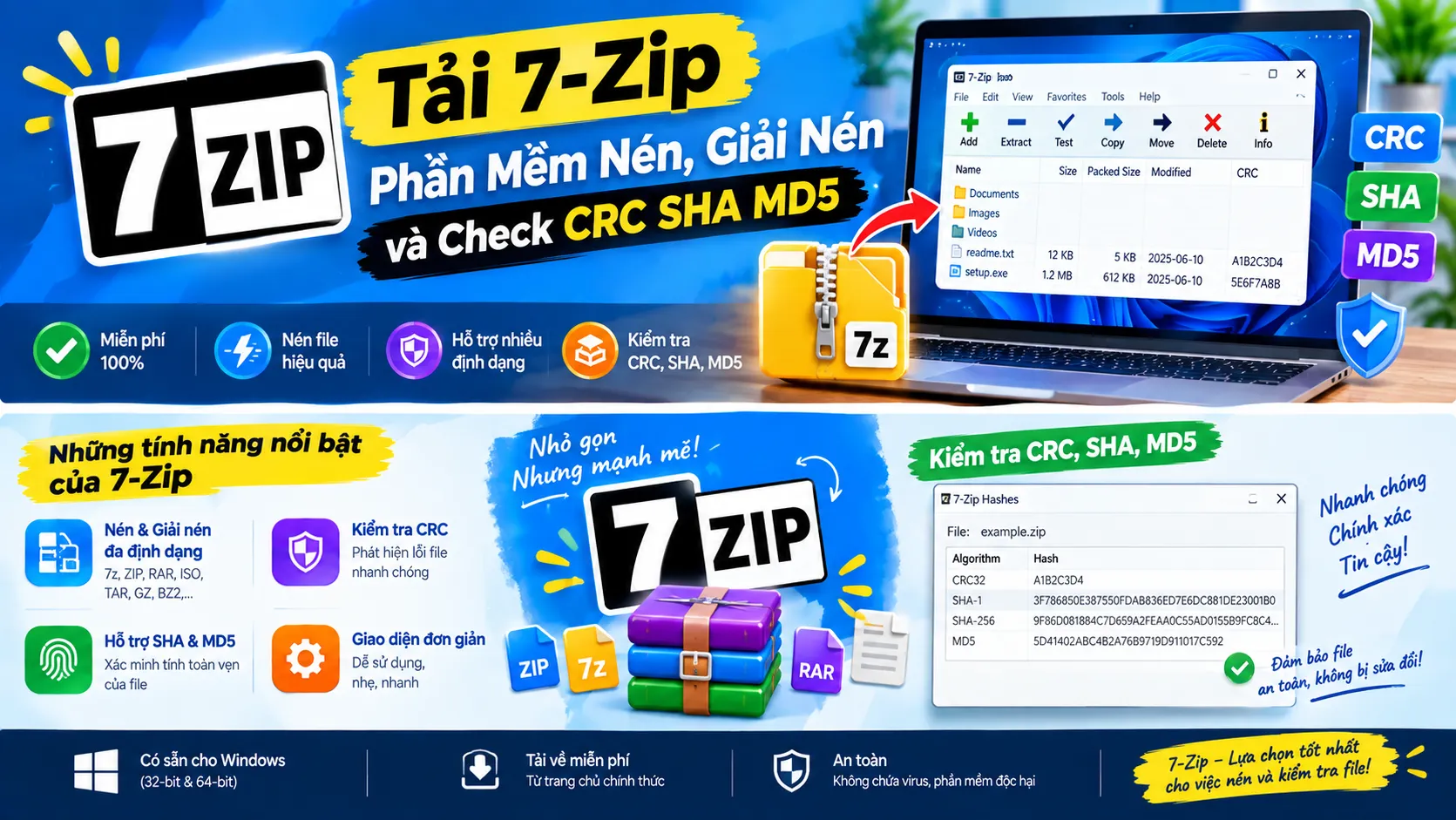
Download 7-Zip: Free Software to Compress, Extract, and Check CRC, SHA, and MD5
Every computer needs a compression and extraction tool, but not every one is as light, free, and reliable as 7-Zip. It’s an open-source tool that’s been around for a long time, and it’s still the familiar choice for many Windows users whenever they need to compress files, extract them, or check that a file is intact. This guide explains what 7-Zip is, why so many people trust it, and how to download and install it step by step. You’ll also find tips for getting started and answers to common questions.
What Is 7-Zip?
7-Zip is software for compressing, extracting, and checking CRC, SHA, and MD5 codes. It’s developed as open source, so it’s completely free to use. Beyond basic compression and extraction, 7-Zip can also check a file’s checksum, which is handy when you want to verify that a downloaded file is corrupted or has been altered from the original.
The software’s own archive format, .7z, is generally regarded as having a higher compression ratio than the standard .zip format, which means noticeably less storage space for the same amount of data. 7-Zip can also extract most other popular archive formats, so you don’t need to worry about compatibility when someone sends you a compressed file.
Why Do So Many People Trust 7-Zip?
A few reasons explain why 7-Zip has stayed one of the most widely used compression tools on Windows for so many years:
- Fast processing, even with large files.
- A simple, no-frills interface that’s easy to use even if you’re not tech-savvy.
- 7z format support with a high compression ratio, which saves storage space.
- Completely free, with no feature-limited version and no ads inserted.
- Built into the Windows right-click menu, so you can use it right away without opening a separate app.
For both personal users and office workers who regularly send, receive, and store files, these are the factors that keep 7-Zip relevant even though the market has plenty of other compression tools.
7z vs. ZIP: A Quick Comparison
| Feature | .7z | .zip |
|---|---|---|
| Compression ratio | Generally higher | Standard |
| Compatibility | Needs 7-Zip or a compatible tool | Opens almost anywhere, often with no extra software |
| Best for | Saving storage space, archiving large data | Quick sharing with people who may not have 7-Zip |
If you’re sending a file to someone who might not have 7-Zip, ZIP is the safer choice. For your own archives, .7z is usually the better pick.
How to Download and Install 7-Zip
Installing 7-Zip is one of the simplest processes among utility programs and takes about a minute.
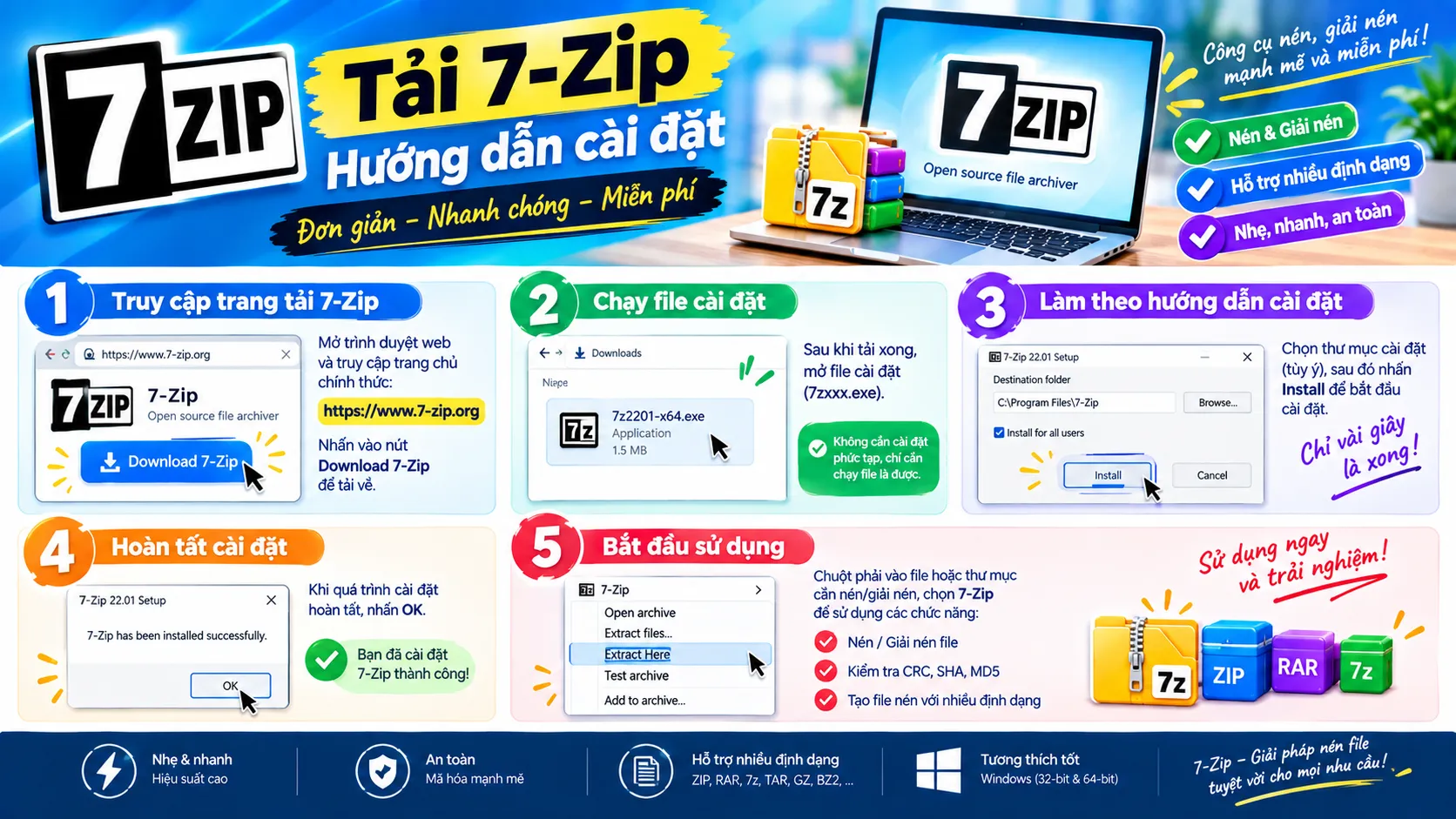
Before You Start: Quick Checklist
- Download the installer only from the official 7-Zip website to stay safe.
- Make sure you pick the version that matches your operating system.
- Save any open work first, just in case.
Download the 7-Zip Installer
Go to the 7-Zip homepage and choose the version that fits your operating system to download it. Once it finishes, right-click the 7z.exe file and choose Run as administrator to run it with administrator rights.
Install 7-Zip on Your Computer
In the window that appears, click Install to begin. The process is quick because the software is so lightweight. When it’s done, you’ll see a message saying the installation was successful. Just click Close to shut the window.
Using 7-Zip After Installation
Unlike some programs where you open the main interface and drag files in, 7-Zip is built right into the Windows right-click menu. Just right-click the file or folder you want to compress, extract, or check, then choose 7-Zip from the list that appears.
On Windows 11, the default right-click menu is condensed, so you need to click Show more options first to bring up the full menu. The 7-Zip entry will appear there.
Basic Things You Can Do With 7-Zip
Most of the work with 7-Zip happens through the right-click menu:
- Compress a file or folder into 7z or zip format.
- Extract an existing archive.
- Check CRC, SHA, and MD5 codes to confirm a file is still intact after downloading or being passed along through different sources.
If you often work with files downloaded from the internet, the checksum feature is a nice bonus that not every compression tool includes out of the box.
Tips for Getting Started
- Use 7z for your own archives. You’ll save more space than with zip.
- Use zip when sharing. It’s the safer choice for people who may not have 7-Zip.
- Verify important downloads. Compare the checksum with the one published by the source before opening the file.
- Name archives clearly. Good names make files easier to find later.
- Keep the original until you’ve tested the archive. Extract it once to confirm everything is intact before deleting the source files.
Frequently Asked Questions
Is 7-Zip really free?
Yes. 7-Zip is open source and completely free, with no ads and no feature-limited version.
Why can’t I see 7-Zip in the right-click menu on Windows 11?
Windows 11 shows a shortened right-click menu by default. Click Show more options to see the full menu, where the 7-Zip entry appears.
What is a checksum, and why check it?
A checksum (CRC, SHA, or MD5) is a code calculated from a file’s contents. If you compare it with the original code and they match, the file hasn’t been corrupted or changed.
Can 7-Zip open other archive formats?
Yes. Besides its own .7z format, 7-Zip can extract most other popular archive formats, so you can open compressed files people send you.
Should You Download 7-Zip for Everyday Use?
If you need a light, stable compression tool that costs nothing, 7-Zip is still hard to beat on Windows. It handles everything from compressing files to send by email and extracting downloaded documents to checking the integrity of important data.
If your computer doesn’t have a compression tool yet, downloading and installing 7-Zip is one of the first things worth doing to make everyday file management easier.

