


Download Joplin: A Free OneNote Alternative With Markdown Support
OneNote is handy, but if you don’t want your notes locked inside the Microsoft ecosystem, or you simply prefer writing in Markdown over fiddly formatting toolbars, Joplin is worth a try. It’s a free, open-source note-taking app that runs on both computers and phones. This guide explains what Joplin does, why some people pick it over OneNote, and how to download and install it, step by step. You’ll also find tips for getting started and answers to common questions.
What Is Joplin?
Joplin lets you create, edit, and organize notes with ease, and it supports Markdown right inside the editor. If you’re already used to writing in Markdown, that’s a big plus, because you can format text quickly by typing syntax directly instead of clicking through a row of toolbar buttons.
You can attach images and files to your notes, and more importantly, Joplin supports syncing across multiple devices. That means you can jot something down on your computer at home, then open the exact same note on your phone when you’re out, as long as you’ve set up syncing beforehand.
Why Choose Joplin Over OneNote?
OneNote has a strong ecosystem and integrates deeply with Microsoft 365, but not everyone needs that much. For plenty of users, Joplin offers a few advantages worth considering:
- Free and open source: no features locked behind a paid plan.
- Markdown support: ideal if you’d rather write with syntax than format with the mouse.
- Notebooks and folders: content is sorted clearly by topic.
- Attachments: add images and files directly to a note.
- Multi-device sync: you’re not stuck on a single platform.
If your work depends on complex team collaboration or deep integration with other Office apps, OneNote still has its own edge. But if all you need is a clean personal notebook that’s easy to search, Joplin is a much lighter option.
Joplin vs. OneNote: A Quick Comparison
Here’s how the two stack up on the points most people care about:
| Feature | Joplin | OneNote |
|---|---|---|
| Price | Free and open source | Free tier available, with Microsoft 365 integration |
| Writing style | Markdown | Rich-text formatting with the mouse |
| Organization | Notebooks and folders | Notebooks, sections, and pages |
| Attachments | Images and files | Images, files, and more |
| Real-time team collaboration | Limited | Stronger |
| Best for | Personal notes, Markdown fans | Microsoft 365 users, team workflows |
The details of each app change between releases, so check the official websites if a specific feature matters to you.
How to Download and Install Joplin
Installing Joplin doesn’t take long, and the process is fairly short compared with many other programs.
Before You Start: Quick Checklist
- Download the installer only from the official Joplin website to stay safe.
- Close other programs so the installation runs smoothly.
- If you plan to sync across devices, decide in advance where you want to store your synced data.
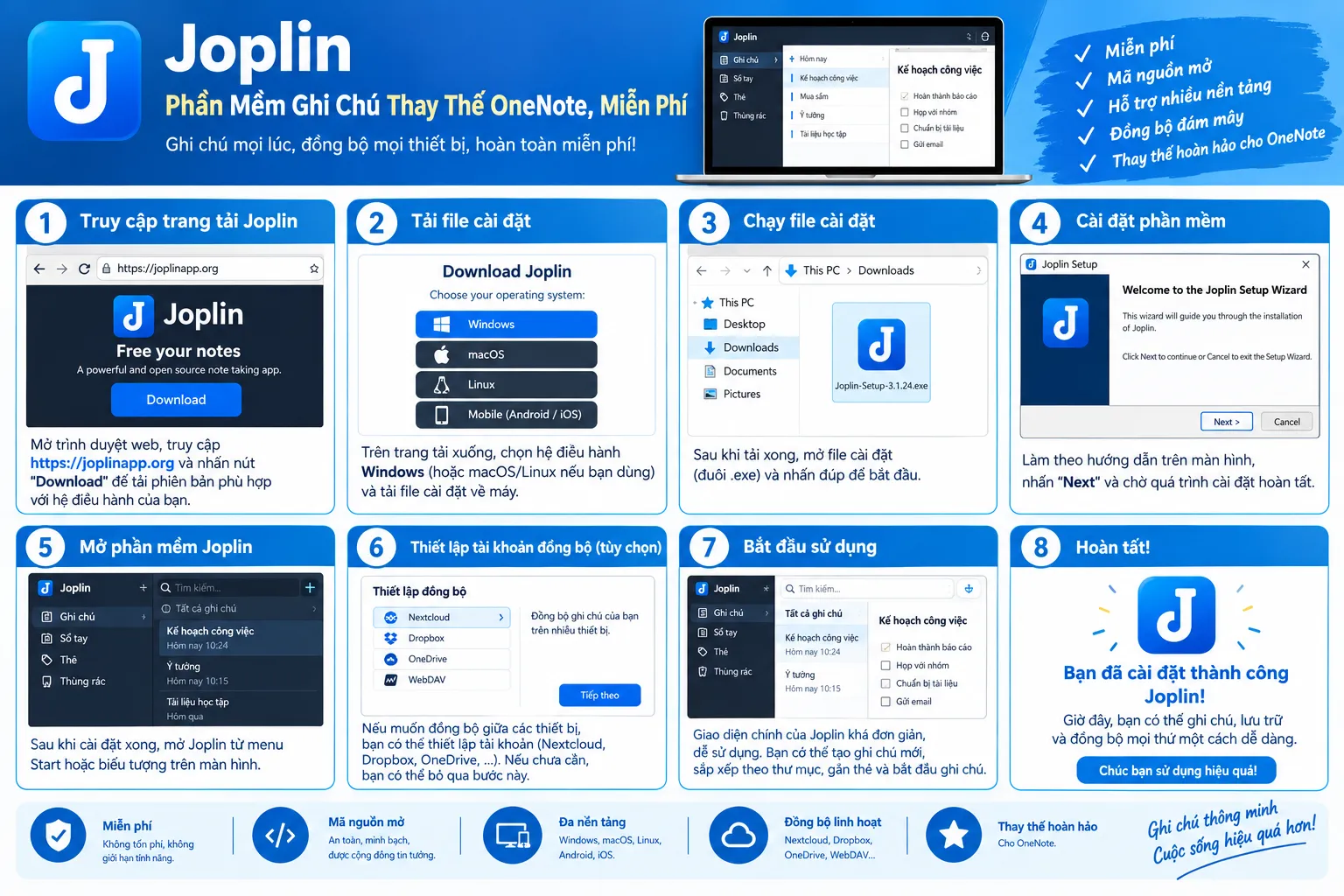
Download the Joplin Installer
Go to the Joplin homepage and click Download the app to get the installer onto your computer. Once the download finishes, open Joplin-Setup.exe, then click Install to begin.
Install Joplin on Your Computer
After you click Install, the installation runs automatically while the system copies the necessary files to your computer. When it’s done, click Finish to close the setup window. Joplin is now ready to open, and you can start taking notes right away.
The Joplin Interface
When you open Joplin, you’ll see the interface split into three main parts: the notebook list on the left, the list of notes in the selected notebook in the middle, and the full content of the open note on the right. This layout will feel familiar if you’ve ever used a note-taking app organized by notebooks and folders.
When you write a new note, you can type directly in Markdown syntax, and Joplin shows a formatted preview right beside it. That lets you check how your note looks without switching back and forth between different views.
A Few Markdown Basics
If you’re new to Markdown, you only need a handful of symbols to get started:
- Put # at the start of a line to make a heading.
- Wrap a word in asterisks to make it bold or italic.
- Start a line with – to create a bullet list.
- Use numbers followed by a period to create a numbered list.
You can learn these in a few minutes, and after that, formatting becomes much faster than clicking menus.
Tips for Getting Started
A few habits will help you get more out of Joplin from day one:
- Create notebooks by topic. Separate notebooks for work, study, and personal ideas keep things easy to find.
- Use clear note titles. A good title makes a note much easier to find later.
- Set up syncing early. If you want your notes on your phone too, do it before you build up a large collection.
- Attach files where they belong. Keeping images and documents inside the related note saves you from hunting through folders.
- Back up your notes now and then. Even with syncing on, an occasional backup is a good safety habit.
Who Is Joplin For?
If you need a place to keep work notes, study notes, or loose ideas that you want to sort by topic, Joplin does the job well thanks to its clear notebook and folder structure. For people comfortable with Markdown, switching to Joplin can also make note-taking faster than with traditional mouse-driven formatting tools.
If you need to share notes in real time with a whole team and edit together at the same moment, platforms with deeper collaboration features may suit you better than Joplin in that respect.
Frequently Asked Questions
Is Joplin really free?
Yes. Joplin is free and open source, so you can download and use it without paying for a license.
Do I need to know Markdown to use Joplin?
It helps, but it’s not a requirement. Markdown is simple to learn, and the live preview shows you the result as you type.
Can I use Joplin on my phone?
Yes. Joplin works on both computers and phones, and you can sync your notes between devices once you’ve set up syncing.
Is Joplin a good replacement for OneNote?
For personal note-taking, yes. If you rely on real-time team collaboration or deep Microsoft 365 integration, OneNote may still fit better.
Should You Download Joplin for Everyday Note-Taking?
If you want personal note-taking, information storage, and multi-device sync without paying anything, Joplin is a sensible replacement for OneNote or other paid note apps. It suits students, working professionals, and anyone who wants a private, easy-to-control space for their notes.
If you’re looking for a free note-taking tool with Markdown support and multi-device sync, downloading Joplin is a simple first step toward a tidy note system of your own.

