

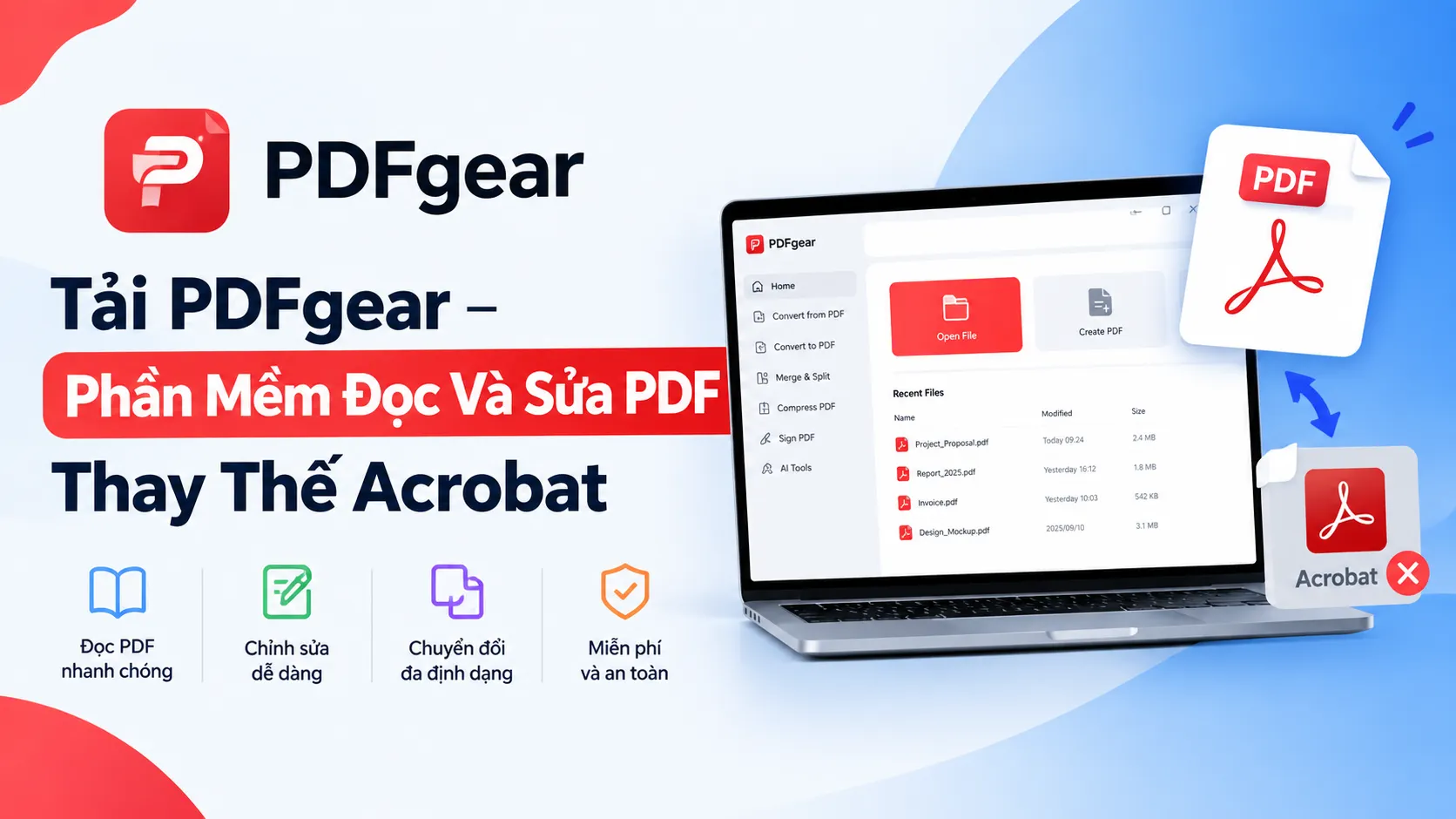
Download PDFgear: A Completely Free PDF Reader and Editor That Replaces Acrobat
Acrobat is still the name everyone thinks of when it comes to working with PDF files, but not everyone wants to pay a monthly fee just to edit a few pages or sign a contract. PDFgear steps into exactly that gap: a free PDF reader and editor that handles most of what everyday users need without charging a cent. This guide explains what PDFgear is, what it can do with your PDFs, and how to download and install it step by step. You’ll also find tips for getting started and answers to common questions.
What Is PDFgear?
PDFgear is a PDF tool that runs directly on your computer. It lets you view, edit, convert, and sign documents, along with a range of other PDF tasks. The interface is modern and the function buttons are clearly laid out, so even new users don’t spend long hunting for the tool they need.
What’s put PDFgear on people’s radar lately is that it offers the full set of basic features that used to be found mostly in paid versions of Acrobat or other commercial PDF software. If you only need to handle PDFs at an ordinary level for work and study, it’s a sensible replacement for traditional programs.
What Can PDFgear Do With PDF Files?
Not every free PDF reader lets you edit content directly, but PDFgear does. Here are some of the most common things you can do:
- View and scroll through PDF documents with fast loading.
- Edit text and images right inside the PDF, with no need to convert to Word first.
- Convert PDFs to other formats and back again.
- Sign documents electronically right in the app.
- Manage and rearrange the pages in a PDF file.
For office workers, this is pretty much a PDF toolkit that can stand in for Acrobat for most daily needs, from reading contracts and editing reports to signing off on documents.
PDFgear vs. Acrobat: A Quick Comparison
| Feature | PDFgear | Acrobat |
|---|---|---|
| Price | Free | Paid subscription for full features |
| Viewing and reading | Yes | Yes |
| Direct text and image editing | Yes | Yes |
| Format conversion | Yes | Yes |
| E-signing | Yes | Yes |
| Advanced professional features | Basic to moderate | Stronger |
| Best for | Everyday work and study | Heavy professional and enterprise use |
Details change between versions, so check the official websites if a specific feature matters to you.
How to Download and Install PDFgear
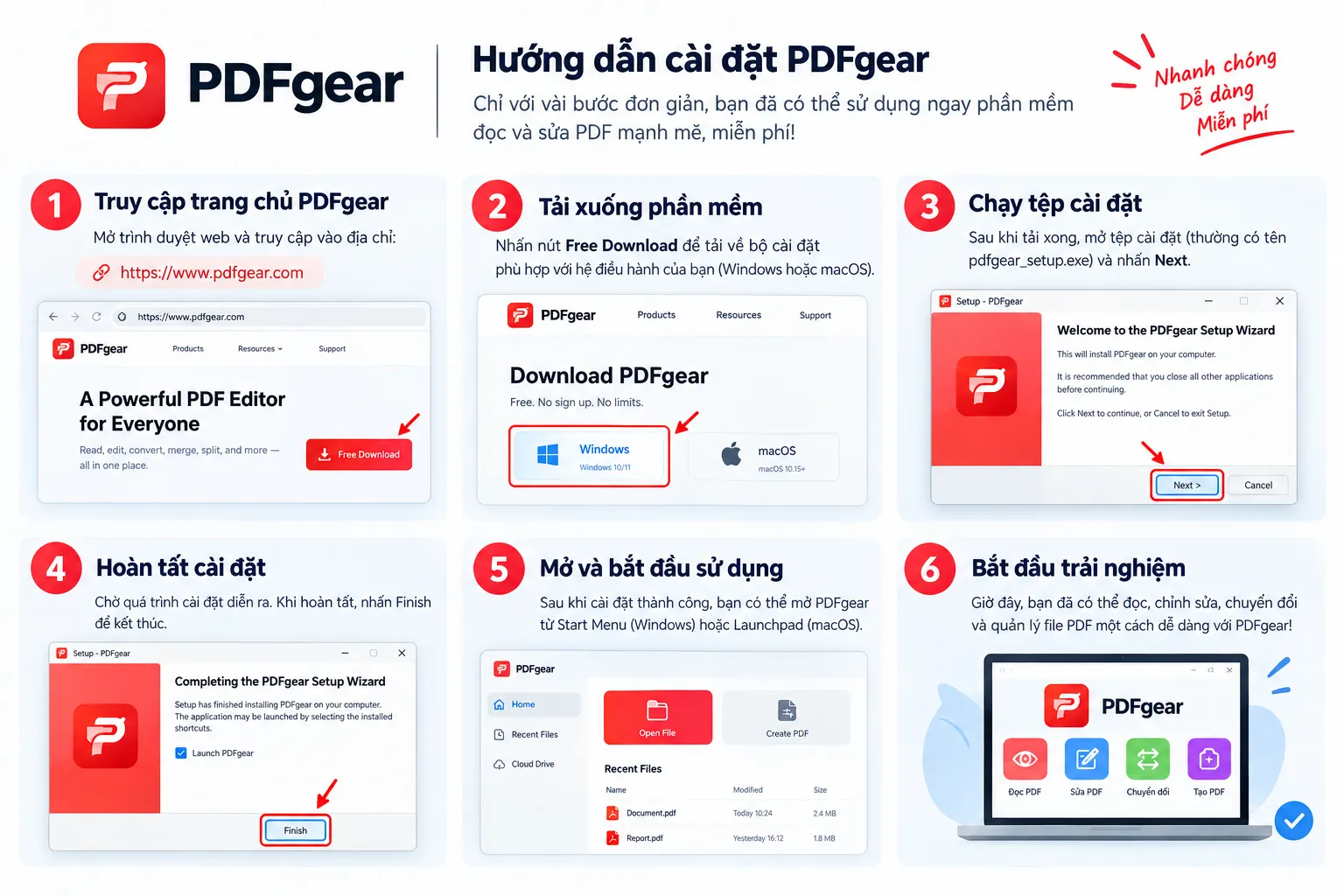
Installing PDFgear is quite simple. There are no complicated steps and no special configuration required.
Before You Start: Quick Checklist
- Download the installer only from the official PDFgear website to stay safe.
- Close other programs so the installation runs smoothly.
- Save any open work first, just in case.
Download the PDFgear Installer
Go to the PDFgear homepage and download the installer. Once it’s finished, open pdfgear_setup.exe. A confirmation window will pop up, so click OK to continue.
Install PDFgear on Your Computer
From here, installation mostly comes down to clicking Next through the installer’s default setup steps. After the last Next, click Install to begin the actual installation.
The system copies the necessary files over automatically, and this goes fairly quickly. When it’s done, click Finish to close the setup window. PDFgear is now ready to use.
The PDFgear Interface in Practice
When you open PDFgear, you’ll see a clean main screen focused on opening files, converting, and editing. When you open any PDF, the interface switches to reading and editing mode, with tools on the sidebar or the top toolbar depending on what you’re doing.
This layout makes it easy to picture what you’re doing with the document, instead of digging for hidden features buried under layers of menus like in some older PDF programs.
A Few Tasks to Try First
- Open a PDF and scroll through it to get a feel for the layout.
- Click into a text block and make a small edit.
- Try converting a PDF to another format and see how it comes out.
- Add an electronic signature to a practice document.
- Rearrange or delete a page in a copy of a file.
Tips for Getting Started
- Work on a copy first. Keep the original file safe while you get used to editing.
- Check the result after converting. Complex layouts can shift, so give the output a quick look.
- Keep your files organized. Name edited versions clearly so you don’t mix them up with originals.
- Be careful with signed documents. Keep a copy of the final signed file for your records.
- Save often. It’s a good habit with any editing software.
Frequently Asked Questions
Is PDFgear really free?
Yes. PDFgear provides its core features without any fee, so you can view, edit, convert, and sign PDFs for free.
Can PDFgear edit text directly in a PDF?
Yes. You can edit text and images right inside the file without converting it to Word first.
Is PDFgear easy for beginners?
Yes. The buttons are clearly laid out, so new users can find the tool they need without much trouble.
Can PDFgear replace Acrobat?
For everyday work and study, yes. For very advanced professional or enterprise needs, Acrobat may still have the edge.
Can PDFgear Replace Acrobat?
For ordinary PDF handling, PDFgear covers a lot: viewing documents, editing content, converting formats, signing, and managing files, all without paying anything. That’s why more and more people, especially office workers and students, are choosing it over traditional paid PDF software.
If you need a free, easy-to-use PDF tool for everyday work and study, PDFgear is well worth trying right now.

