


Download draw.io: A Completely Free Diagramming Tool That Replaces Visio
Visio’s license isn’t cheap, yet most people only need to draw a few flowcharts, org charts, or mind maps for work or a presentation. draw.io solves exactly that problem: a free diagramming tool you can use right in your browser or install on your computer, with no cost involved. This guide explains what draw.io is, who it suits, and how to download and install it step by step. You’ll also find tips for getting started and answers to common questions.
What Is draw.io?
draw.io is open-source diagramming software that lets you create flowcharts, org charts, network diagrams, mind maps, and many other kinds of diagrams. Because it’s open source, it’s completely free, with no feature limits and no paid account required like some commercial diagramming tools.
The interface is quite intuitive. Most of the work comes down to dragging shapes onto the canvas and connecting them with arrows. The software also comes with plenty of ready-made templates, so you don’t have to start from a blank page every time you need a new diagram.
Who Is draw.io For?
Not everyone needs a heavyweight tool like Visio with its full set of enterprise features. For most everyday needs, draw.io does the job well:
- Students who need mind maps or algorithm flowcharts for assignments and projects.
- Office workers who need org charts or workflow diagrams for reports and presentations.
- Tech and IT people who need to sketch network diagrams or system architecture at a basic level.
- Anyone who wants a quick diagramming tool without installing heavy software or paying for a license.
If your work demands in-depth technical diagrams or tight integration with the Microsoft Office ecosystem, Visio still has its own edge. But for general diagramming needs, draw.io is a sensible, cost-free replacement.
draw.io vs. Visio: A Quick Comparison
| Feature | draw.io | Visio |
|---|---|---|
| Price | Free and open source | Paid license |
| Where it runs | In the browser or as a desktop app | Desktop and Microsoft 365 options |
| Account required | No paid account needed | Subscription or license needed |
| Templates | Plenty of ready-made templates | Extensive template library |
| Deep Microsoft Office integration | Limited | Stronger |
| Best for | Flowcharts, org charts, mind maps, basic network diagrams | Enterprise and advanced technical diagramming |
Details change between versions, so check the official websites if a specific feature matters to you.
How to Download and Install draw.io
Installing draw.io is quite simple. It only takes a few steps before you can start drawing.
Before You Start: Quick Checklist
- Download the installer only from the official draw.io website to stay safe.
- Make sure you pick the version that matches your operating system.
- Close other programs so the installation runs smoothly.
- If you’d rather not install anything, you can skip this and use draw.io in your browser.
Download the draw.io Installer
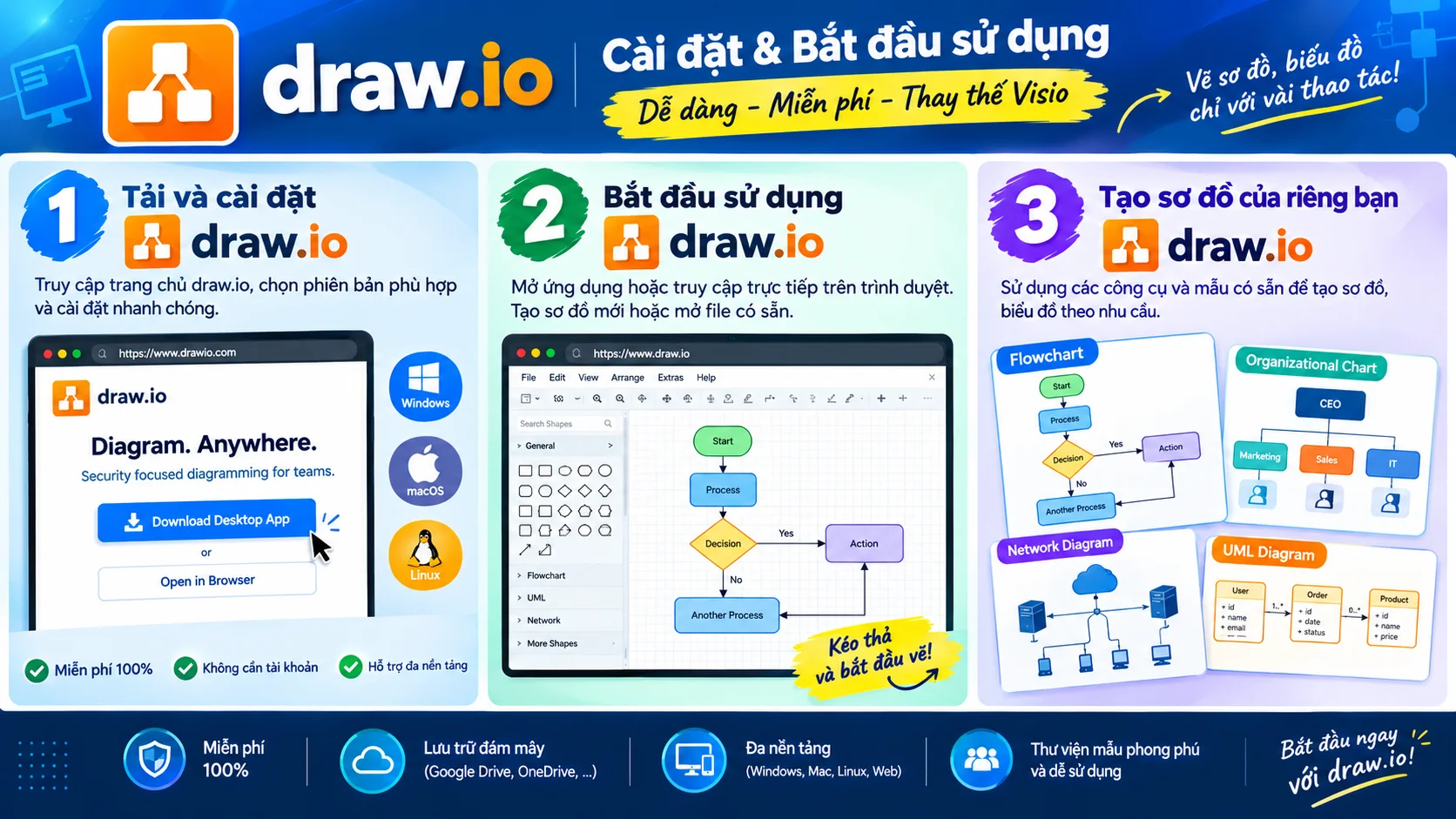
Go to the draw.io homepage and choose the version that fits your operating system to download it. Once it finishes, open draw.io-windows-installer.exe, then click Install to begin.
Install draw.io on Your Computer
After you click Install, the installation runs automatically while the system copies the necessary files to your computer. Just wait for it to finish, then click Finish to close the setup window.
draw.io is now ready to open and use. And if you don’t want to install it at all, you can also open the tool directly in your browser with no download needed.
The draw.io Interface
When you open draw.io, you’ll see the canvas taking up most of the screen in the middle, the library of shapes and arrows on the left sidebar, and the options for color, font style, and borders on the right sidebar. This layout makes the workflow easy to picture: pick the shape you need, drag it onto the canvas, then connect and adjust it however you like.
For simple diagrams like flowcharts or org charts, you can finish quickly using the ready-made templates instead of drawing every shape from scratch.
A Few Things to Try First
- Drag a few shapes onto the canvas and connect them with arrows.
- Change the color and font of a shape from the right sidebar.
- Start from a template instead of a blank page.
- Add text labels to your connectors to explain each step.
- Save your diagram and reopen it to see how it’s stored.
Tips for Getting Started
- Start from a template. It’s the fastest way to get a clean-looking diagram.
- Keep diagrams simple. Fewer shapes and clear labels are easier to read in a presentation.
- Align and space shapes evenly. A tidy layout makes a diagram look much more professional.
- Use consistent colors. Assign a color to each type of step so readers can follow the flow at a glance.
- Save often. It’s a good habit with any diagramming software.
Frequently Asked Questions
Is draw.io really free?
Yes. draw.io is open source and completely free, with no feature limits and no paid account required.
Can I use draw.io without installing it?
Yes. You can open it directly in your browser, or install it on your computer if you prefer a desktop app.
What kinds of diagrams can I make with draw.io?
Flowcharts, org charts, network diagrams, mind maps, and many other types of diagrams.
Can draw.io replace Visio?
For everyday diagramming, yes. If you need in-depth technical diagrams or tight Microsoft Office integration, Visio may still be the better fit.
Should You Choose draw.io Over Visio?
For general diagramming, from flowcharts and org charts to mind maps, draw.io covers what most people need without any licensing cost. That’s why so many people, especially students and office workers, choose it over traditional paid diagramming software.
If you need a clear, visual diagramming tool for study or work and don’t want to invest in paid software, downloading draw.io or opening it right in your browser is the quickest way to get started.

