

Download DaVinci Resolve: Professional Video Editing Software That’s Completely Free
Among today’s video editing programs, DaVinci Resolve is the name that keeps coming up whenever someone needs a powerful editor without paying for a license. It rolls several stages of video production into a single app: cutting and assembling, color grading, audio processing, and effects. This guide covers what makes DaVinci Resolve worth a look and walks you through downloading and installing it on your own computer, step by step. You’ll also find a fix for the most common GPU error, a few tips for getting started, and answers to questions people often ask before they install.
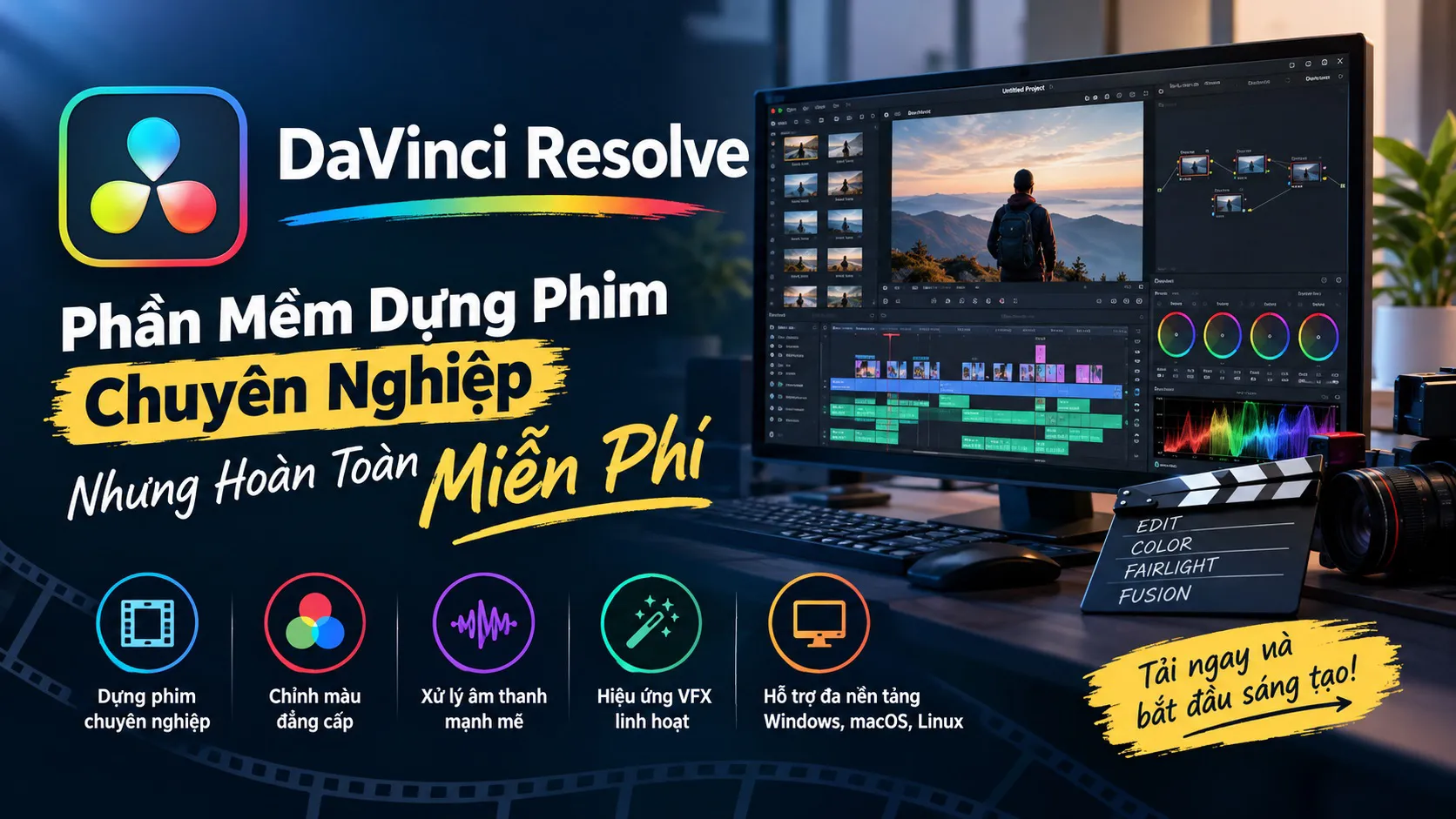
What Is DaVinci Resolve?
DaVinci Resolve is professional video editing software that lets you handle the entire post-production process in one application, instead of bouncing between several different programs. Editing, color correction, audio work, and effects all live in a single interface.
What draws so many people to DaVinci Resolve is that it’s free to use, yet it still offers a toolset that covers everything from basic learning needs to professional video productions. That’s also why it’s trusted by so many content creators, editors, and filmmakers.
Why Do So Many People Choose DaVinci Resolve?
It’s no accident that free software is used by professional video makers. A few factors come up again and again when people compare DaVinci Resolve with the alternatives:
- It has every tool for the whole editing workflow, from cutting to color grading and audio, so you don’t need extra software.
- The modern interface is split into separate workspaces for each stage of production.
- Performance is stable, and it supports a wide range of video formats.
- New features are added constantly, which suits beginners and experienced editors alike.
If you’re after high-quality video editing software and don’t want to pay for a license, these are the reasons DaVinci Resolve deserves a spot on your shortlist.
Free Version vs. Studio: Which One Do You Need?
DaVinci Resolve comes in two editions: the free DaVinci Resolve and the paid DaVinci Resolve Studio. For most beginners, hobbyists, and many working creators, the free version already does everything they need. That includes cutting, color grading, audio mixing, and exporting finished videos.
The Studio edition is aimed at people who want extra advanced tools and higher-end output options. If you’re just starting out, there’s no reason to pay for it. Learn on the free version first, and if you later hit a limit that actually affects your work, you can look into upgrading. Specific feature differences change between releases, so check the comparison on the official website before deciding.
How to Download and Install DaVinci Resolve
Installing DaVinci Resolve takes a few more steps than your average program, but each one is straightforward if you follow them in order.
Before You Start: Quick Checklist
A few minutes of preparation can save you a lot of trouble later:
- Make sure you have enough free disk space. The installer is large, and video projects take up even more room.
- Update your graphics card driver to the latest version. Most GPU errors come from outdated drivers.
- Close other heavy programs while installing so the process runs smoothly.
- Check the official system requirements to confirm your computer can handle video editing.
Download the Installer From the Official Website
First, go to the DaVinci Resolve homepage, scroll down a bit, and click Free Download Now. On the next screen, choose the version you want, and make sure you pick the regular DaVinci Resolve (the free version), not the paid Studio edition.
The site will ask for some personal details. You can enter placeholder info if you prefer. Then click Register & Download and the file will start downloading. If it doesn’t start automatically, you can click the DaVinci_Resolve_Windows.zip file directly to download it manually.
Install It on Your Computer
Once the download finishes, unzip the file, open DaVinci_Resolve_Windows.exe, and click Install to begin.
The next steps are simple: click Next to get past the intro screen, tick the box to accept the terms, and click Next again. After one more Next, click Install to officially start the installation. The system will copy the files over automatically, so you just wait.
When it’s done, click Finish. You’ll then be asked whether to restart your computer. Click Yes to finish up and apply the changes.
Initial Setup After Installation
After your computer restarts, open DaVinci Resolve, click Continue, then choose Quick Setup to start the initial configuration.
The software will ask a few questions to tailor your workspace: the video resolution you usually work in, the folder where you store your videos, and the video editor you used before (if you haven’t used one, just pick DaVinci Resolve). Click Continue after each choice, and at the final step click Start to enter the main workspace.
Fixing a GPU Error If You Run Into One
A fairly common issue is seeing a GPU-related error message when you open DaVinci Resolve. If that happens, click Update Configuration.
In the window that appears, go to System – Memory and CPU and untick both GPU processing mode and GPU selection. Then make sure OpenCL is selected and the correct graphics card for your machine is ticked, click Save, and then click OK. Reopen DaVinci Resolve and it should load into the main interface normally.
If the error keeps coming back, updating your graphics driver and restarting the computer is the next thing to try.
The DaVinci Resolve Interface
Once everything is installed and set up, you’ll notice DaVinci Resolve has two main screens: the startup screen (where you manage your projects) and the editing interface, where you do the actual cutting, color grading, audio processing, and effects work. Because every tool is bundled into one application, switching between production stages happens right inside the same workspace, with no need to open other software.
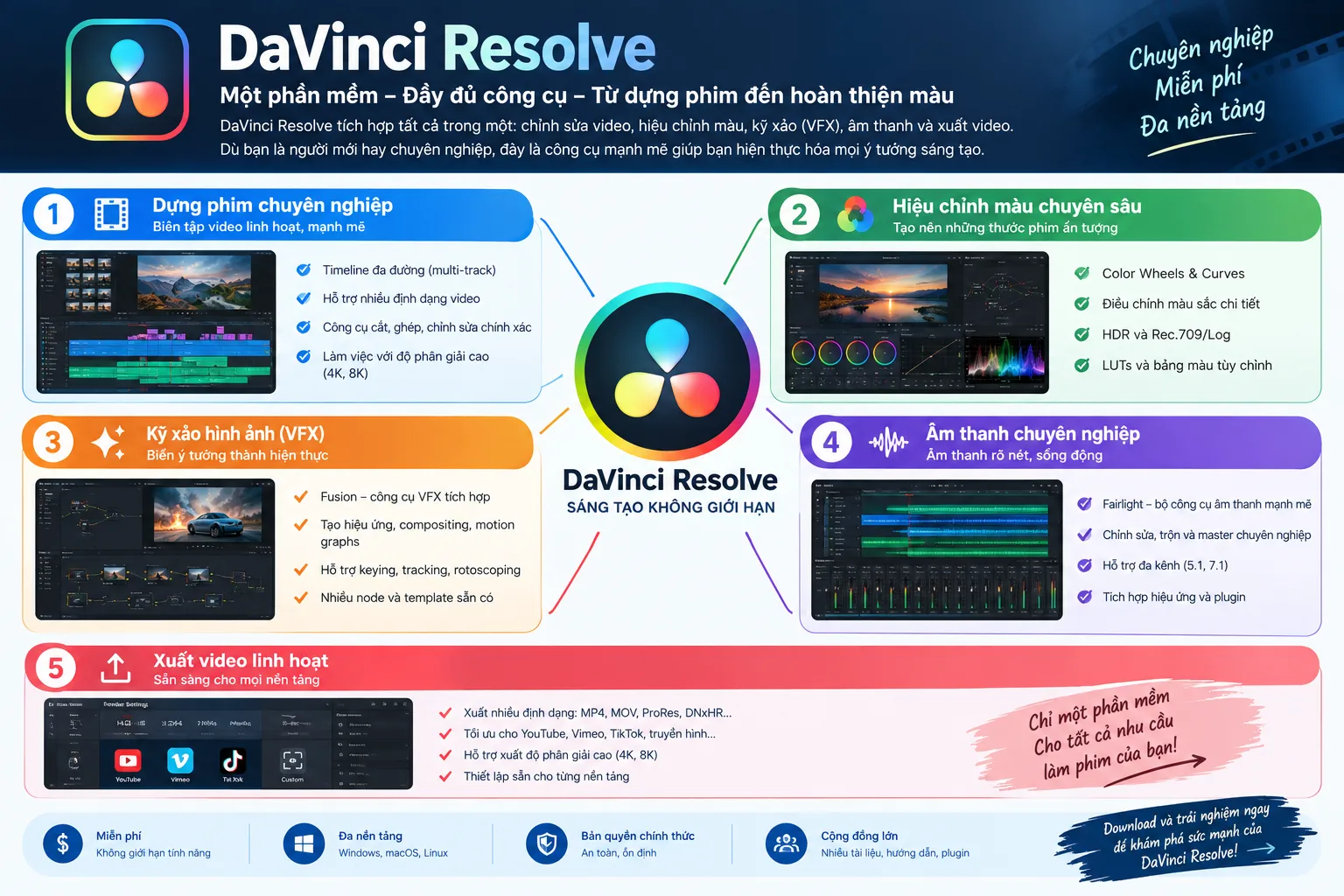
If you’re a beginner, it may take a little time to get used to how the tools are laid out. But that’s exactly how DaVinci Resolve tries to bring the whole post-production workflow into one place.
The Workspaces at a Glance
The bottom of the screen has a row of tabs, and each one is built for a different stage of the job:
- Media: import and organize your clips before you start.
- Cut and Edit: assemble your footage on the timeline, trim clips, and add transitions.
- Fusion: create visual effects and motion graphics.
- Color: fine-tune the look of your footage with professional color grading tools.
- Fairlight: clean up and mix your audio.
- Deliver: export the finished video in the format you need.
You don’t have to master all of them at once. Most people start with the Cut or Edit page and explore the others as their projects grow.
Tips for Getting Started
A few habits will make your first projects a lot smoother:
- Start with a short project. A one-minute clip is enough to learn the basic workflow from import to export.
- Keep your files organized. Put footage, music, and exports in separate folders so nothing goes missing when you reopen a project.
- Save often. Video editing is demanding on a computer, and a crash is much less painful if your latest work is saved.
- Learn the shortcuts gradually. Even a handful of keyboard shortcuts for cutting and playback can speed you up noticeably.
- Be patient with the interface. It feels like a lot at first, but the separate workspaces make more sense after a few sessions.
Frequently Asked Questions
- Is DaVinci Resolve really free?
Yes. The standard DaVinci Resolve edition is free to download and use. A paid Studio edition exists, but you don’t need it to get started.
- Can beginners use DaVinci Resolve?
Yes. The interface has more depth than basic editors, but the free version is a good place to learn, and you can start with just the Cut or Edit page.
- What do I do if DaVinci Resolve shows a GPU error?
Click Update Configuration, adjust the GPU settings as described above, and save. Updating your graphics driver also helps in many cases.
- Does DaVinci Resolve work on other operating systems?
This guide covers installing on Windows. For other systems, check the official download page for the matching version.
- Should You Download DaVinci Resolve?
If you want video editing software with a full set of professional tools, from cutting and color grading to audio and effects, and you’d rather not pay for a license, DaVinci Resolve is well worth trying. It works for people just learning to edit as well as those already working with video professionally, and with features being added all the time, it’s still a solid tool to install and try out for your upcoming video projects.

