

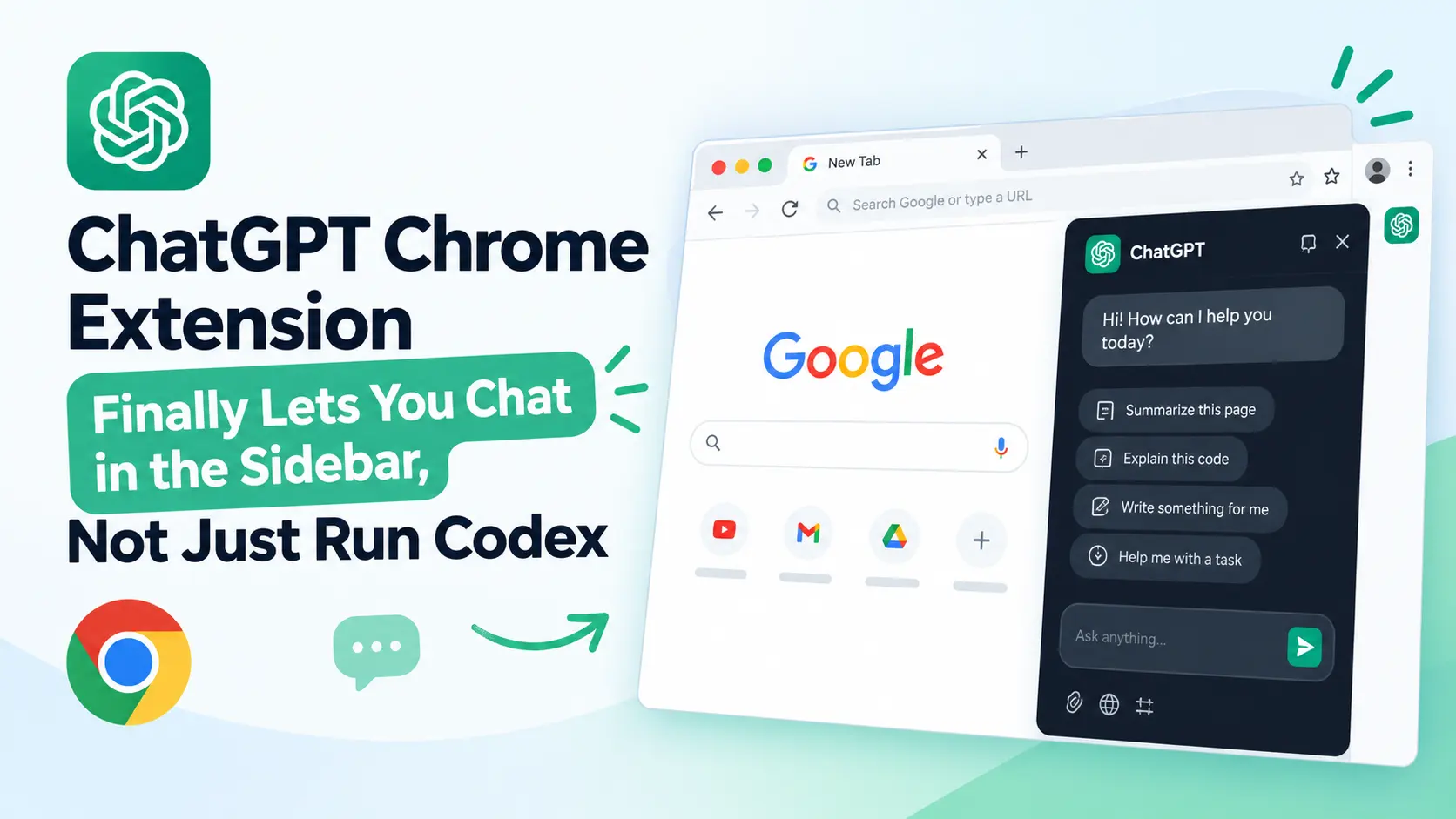
We have been waiting for this one for a while. The ChatGPT Chrome extension now supports plain old chat in the browser sidebar, and it can read the tabs you have open. No more feeling like you are burning through Codex credits just to ask a question about the page in front of you.
If you tried the extension when it first appeared, you probably remember the awkward part. It was tied to Codex, so even a casual question ate into that quota. It felt half finished. OpenAI has now announced the update on X, and the extension finally behaves like the sidebar assistants people already use every day. Here is what changed, how to use it, and where the limits still bite.
What Changed in the ChatGPT Chrome Extension
The short version: you can now talk to ChatGPT directly from the Chrome sidebar, and it can look at the content of the tabs you are on. Before, the extension was basically a front end for Codex. Now it has two modes, a Chat mode for conversations and a Work mode for tasks where the AI actually does things in the browser.
The important detail is the billing and limits side. Chat conversations count against ChatGPT’s own conversation limit. Work mode still shares its limit with Codex. So the thing that annoyed people, spending Codex credits on a simple summary, goes away as long as you stay in Chat mode. One caveat: OpenAI could change how accounts and quotas are shared later, so check your plan details now and then.
How to Set Up the ChatGPT Chrome Extension Sidebar
Setup is boring in a good way. Install the extension from the official Chrome Web Store, pin it, and open the sidebar. You will see the chat interface with both modes available.
A few things worth poking at right away:
- The sidebar inside the sidebar. You can open the ChatGPT side panel to jump between past conversations and features without leaving the page.
- Model and reasoning effort. There is a selector near the input box, so you can pick a model and decide how hard it should think. For a quick summary, a lighter setting is plenty. For a messy comparison, turn the effort up.
- Current page access. Like other AI sidebar extensions, it reads the page you are viewing, so you do not need to paste the text in.
If you are cautious about permissions, and you should be with any extension that reads page content, look at what it asks for during install and avoid using it on pages with sensitive data such as banking or internal dashboards.
Reading Multiple Tabs at Once: The Real Upgrade
Reading the current page is nice. Reading several pages together is where this becomes useful. You can add other open tabs to the conversation, and they show up above the input box as attached context. Then you just ask.
The content is not limited to what is visible on screen, which matters. Many tools only see the viewport, and you end up with a summary of the top third of a long article. Here the whole tab content is available.
Some ways this plays out in practice:
- Comparing products. Open three or four product pages, attach them, and ask for a table of specs, prices, and the differences that actually matter. No copy and paste between tabs.
- Reading the news from several outlets. Open three reports on the same event, attach them, and ask where they agree, where they contradict each other, and what one of them leaves out.
- Research and documentation. Handy when you are juggling a few docs, a GitHub issue, and a blog post, and you need one coherent picture of how they fit together.
A habit worth building: tell the model what you want out of the comparison before it starts. “List the differences in a table, then tell me which one you would pick for a small team” gets a much better answer than “summarize these”.
Other Handy Ways to Use ChatGPT on a Web Page
Beyond whole tabs, there are some smaller touches that make the extension feel like a real daily tool.
Ask about selected text. Highlight a paragraph, and ask ChatGPT about just that part. Good for dense legal text, a confusing changelog, or a paragraph in a paper you did not quite follow.
Right-click shortcut. You can right-click on a page and choose “Ask ChatGPT” to open the sidebar quickly, so you do not have to hunt for the toolbar icon.
YouTube videos with subtitles. If the video has captions, ChatGPT can work from the transcript to summarize key points and explain parts you missed. It will not help with videos that have no subtitles, so do not expect miracles on those. For long talks and tutorials, it saves a lot of scrubbing through the timeline.
Chat Mode vs Work Mode: Which One Do You Need?
This is the part people mix up, so let’s be clear.
Chat mode is for reading and thinking. Summaries, comparisons, explanations, answering questions about what is on the page, organizing information from several articles. It does not touch the page.
Work mode is for doing. It can operate the browser: filling out web forms, organizing tabs, downloading files, and performing specified actions on websites. That is a different category of tool, closer to an agent than a chatbot.

My rule of thumb is simple. If the output is words you will read, use Chat. If the output is something that has to happen in the browser, use Work. Most people will spend 90 percent of their time in Chat mode, and honestly that is the right call, because an agent clicking around on pages deserves more supervision than a summary does.
Usage Limits and Credits: What to Watch
Here is the practical bit that decides whether this feature is free of friction for you. Chat conversations use ChatGPT’s regular conversation limit. Work mode and Codex currently share a separate limit.
So if you only read articles and summarize pages, Chat mode is enough and you never need to touch Work. If you switch into Work mode for a form-filling or download task, that does draw from the shared Work and Codex pool. Keep an eye on it if you also use Codex heavily for coding, because a few agent sessions in the browser could eat into what you were saving for development.
One more thing: the exact limits depend on your plan and can change, so treat this as the current picture rather than a permanent rule.
Who Should Install It, and Who Can Skip It
Install it if you already pay for ChatGPT and spend a lot of time reading on the web. Researchers, developers reading docs, anyone who compares products before buying, and people who follow foreign-language news will get value fast.
You can probably skip it if you already have a sidebar assistant you like and your workflow is built around it. The multi-tab feature is the standout, but it is not unique enough to force a switch if you are happy elsewhere. And if you only chat with ChatGPT occasionally, the regular website works fine.
FAQ About the ChatGPT Chrome Extension
Does the ChatGPT Chrome extension still use Codex credits?
In Chat mode, no. Chat conversations use ChatGPT’s own limit. Work mode still shares its limit with Codex.
Can ChatGPT read all my open tabs automatically?
No. You choose which tabs to add to the conversation, and they appear above the input box. It reads the full content of those tabs, not just what is visible on screen.
Can it summarize YouTube videos?
Yes, when the video provides subtitles. It uses the transcript to summarize and explain the content.
What can Work mode do that Chat mode cannot?
Work mode can act in the browser: fill in forms, organize tabs, download files, and carry out specified actions on websites.
Final Thoughts
This update turns the ChatGPT Chrome extension from a Codex companion into something you can actually keep open all day. The multi-tab reading is the feature I would use first, and the clear split between Chat and Work makes it easier to know when you are spending quota. Install it, try a three-tab comparison on something you were going to research anyway, and you will see quickly whether it earns a place in your toolbar.

